How to write in Ghostkey
Ghostkey is a text editor first. Open a chapter in Apparition and start typing: nothing to configure, nothing to learn, and every keystroke saves to your account as you go.
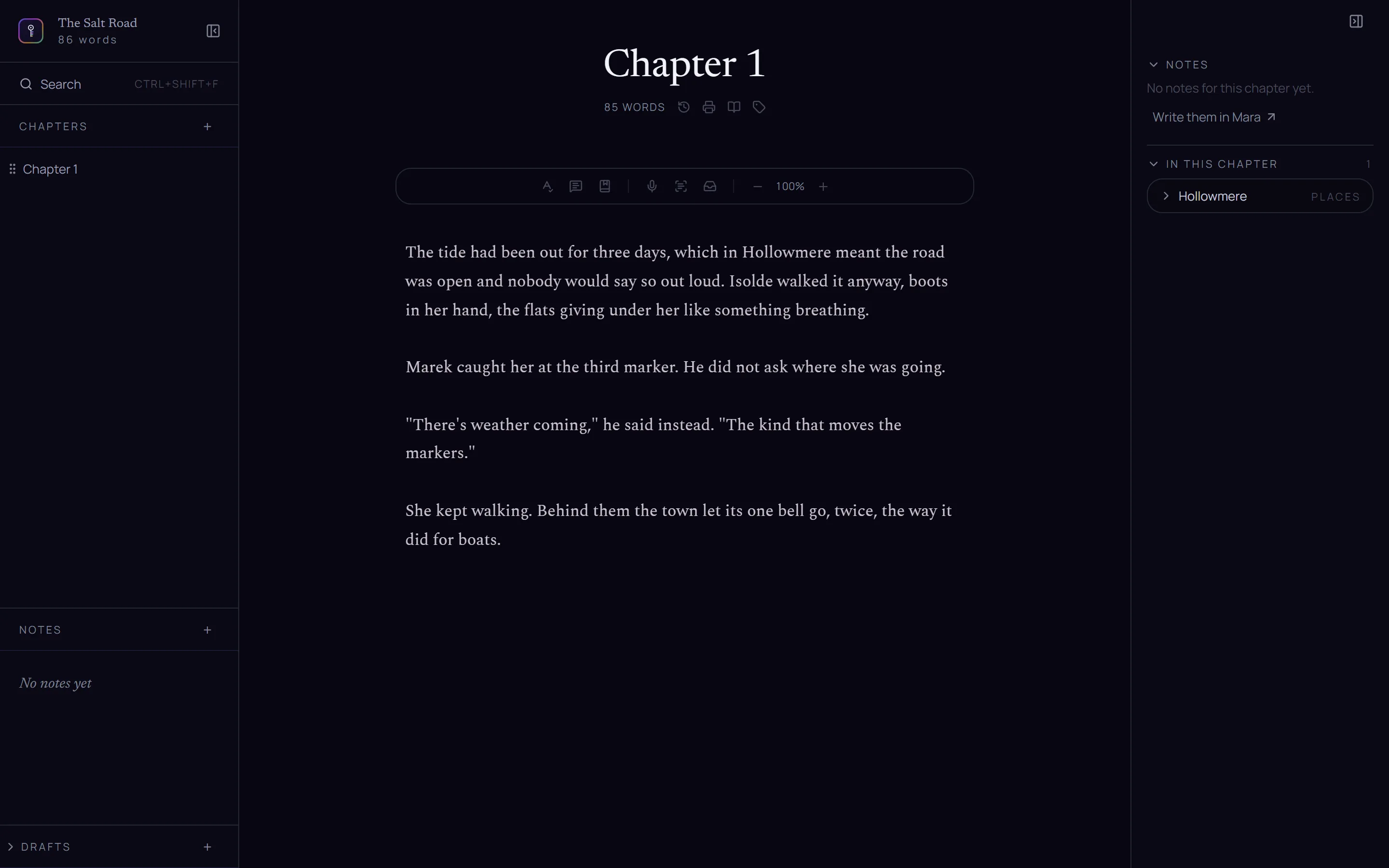
What it also does — and what this guide is about — is take words that were never typed. You can say them out loud, or write them on paper and photograph the page, or bring them across from a Freewrite. All three land in the same place: wherever your cursor is in the chapter you have open.
The three buttons that do it live in the strip above the page, to the right of the writing tools.

Dictate
Click the microphone and a recording dock opens under the toolbar, pushing the page down so you can still see what you are writing into. Then just talk.
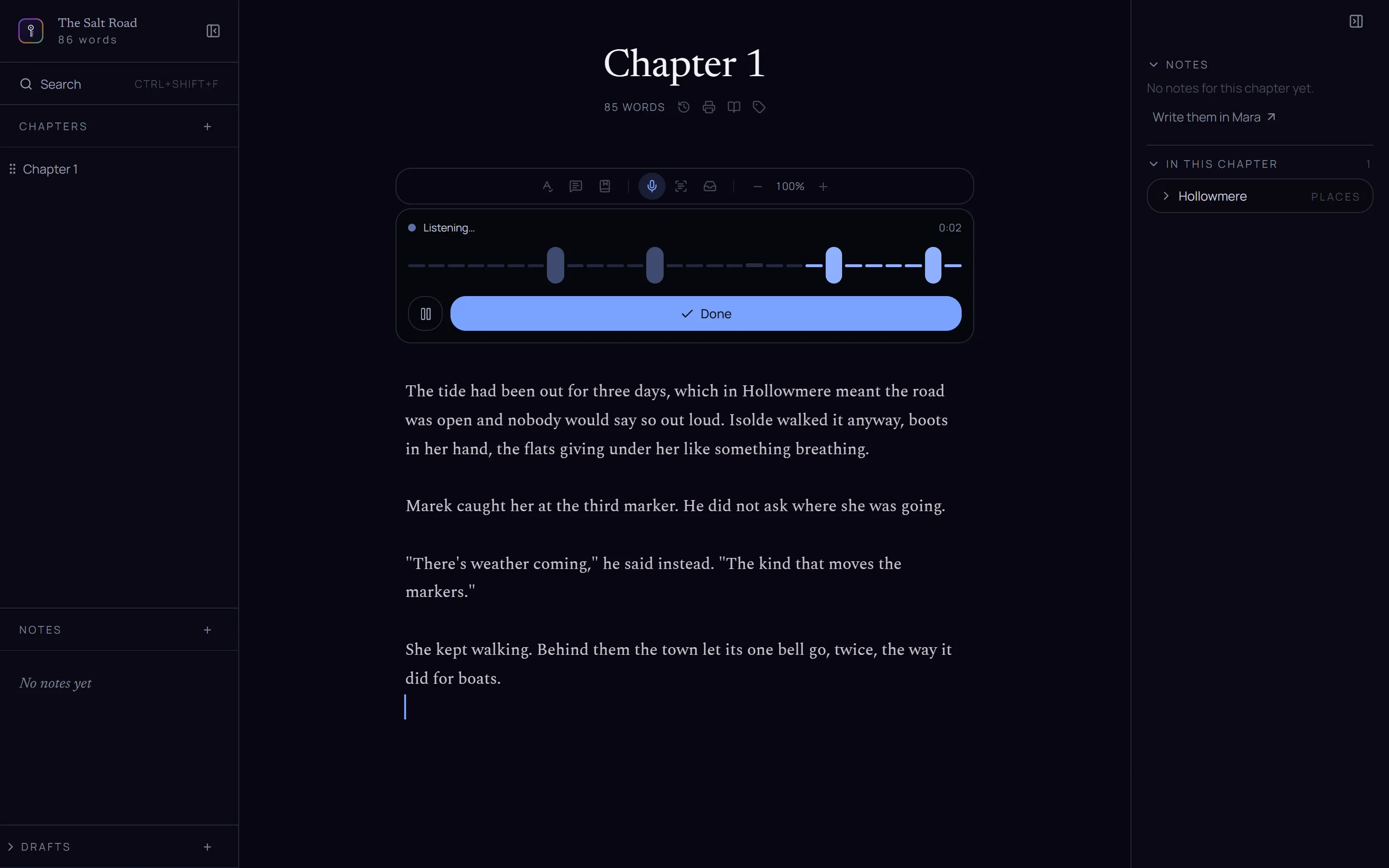
Ghostkey listens continuously and transcribes in pieces: when you stop for about three seconds, the piece you just spoke gets sent off and comes back as text at your cursor. So the rhythm is speak, pause, watch it appear, keep going. You don’t have to stop the recording to see anything.
A few things worth knowing:
- Punctuation you can say out loud. “comma”, “period”, “new paragraph”, “open quote” and “close quote” are removed from the transcript and applied as punctuation. Everything else is heard as words.
- Dialogue gets its quotation marks back. Say whatever, said Marek and it comes back as “Whatever,” said Marek — Ghostkey reads the speech tag and puts the marks where they belong. When it isn’t sure, it leaves your line alone rather than guessing.
- The pause button holds the mic without ending the session; Done closes the dock. A session that hears nothing for a minute stops itself.
- Your words stay your words. The cleanup pass fixes punctuation, capitalisation and obvious mishearings. It does not tighten, rephrase or improve anything — dictated prose is drafty by nature, and that is yours to edit.
Write by hand, then photograph the page
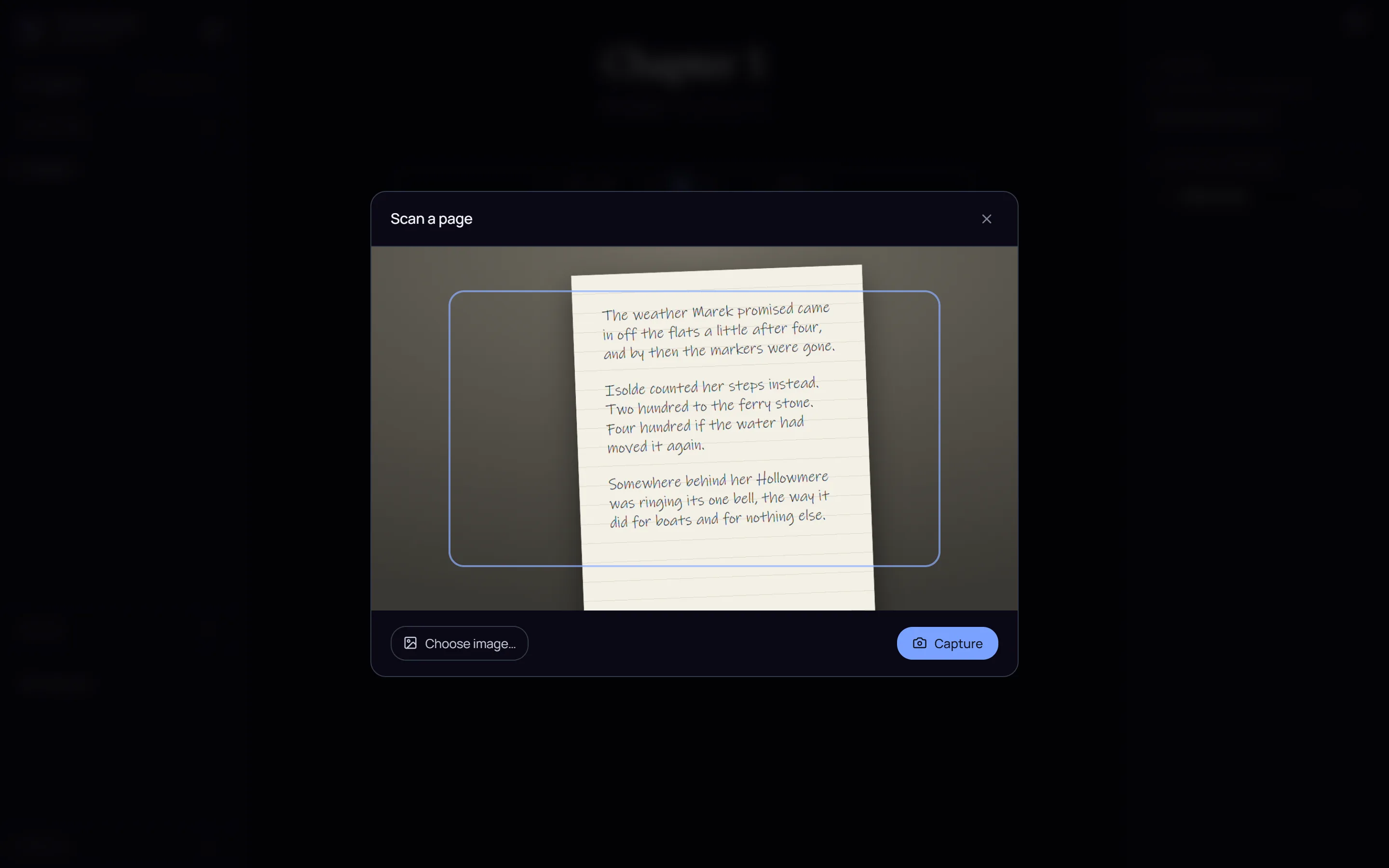
If you drafted with a pen, click the scan button. Ghostkey opens a viewfinder — hold the page up to your camera, or use Choose image… to pick a photo you already took on your phone.
The page is read, and you get the text back to look over before it goes anywhere near your manuscript. Fix anything the handwriting fooled it on — the box is an ordinary editable field — and then insert it.
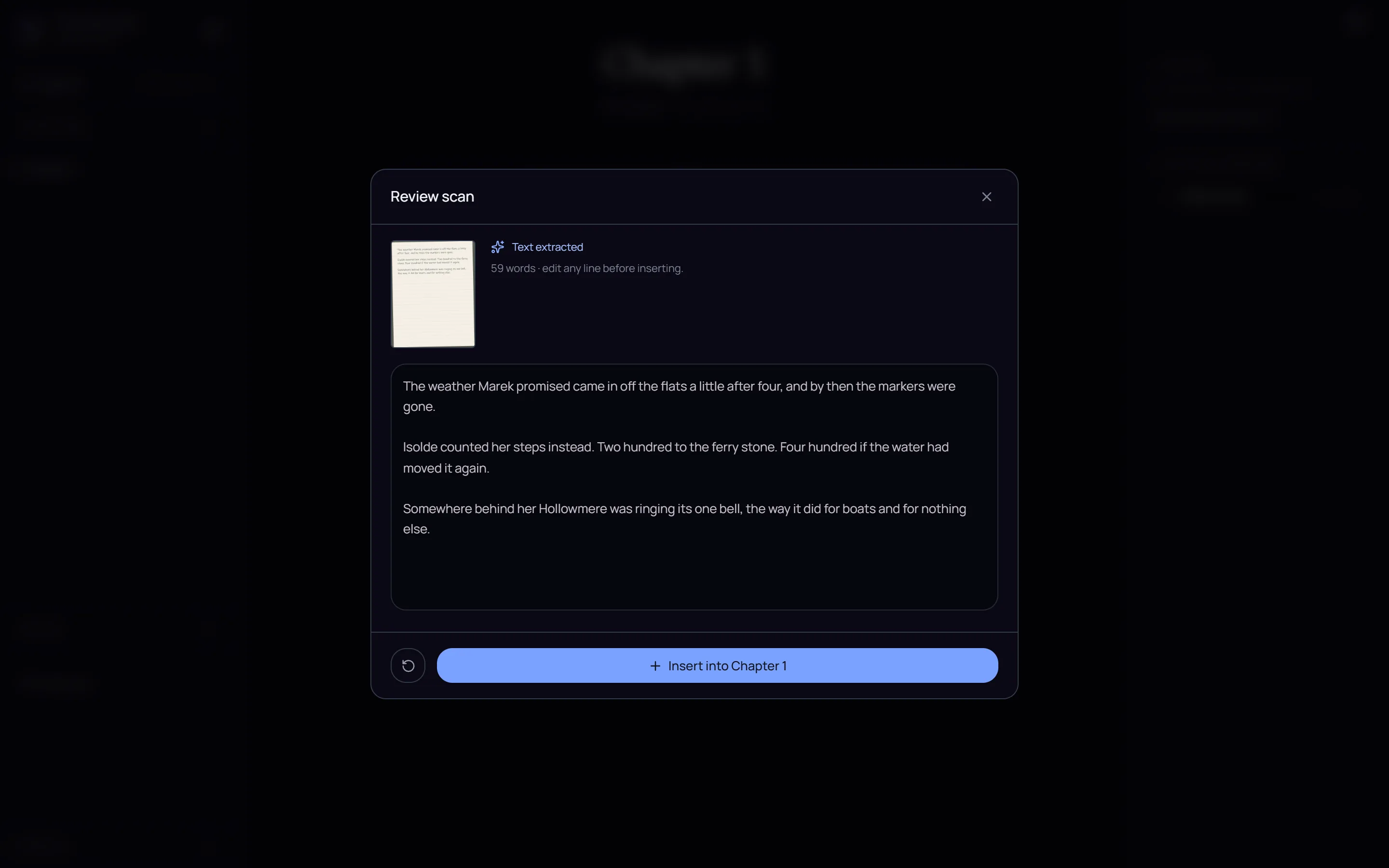
Insert into Chapter 1 drops it at your cursor, exactly like dictation.
Bring in a Freewrite draft
If you draft on an Astrohaus Freewrite, Ghostkey can pull your sessions in directly instead of you copying them out of an email.
It works through Dropbox, because that is what the Freewrite already syncs to:
- In your Freewrite’s Postbox account, connect Dropbox — that is the normal Postbox sync setup, and if you already use it, it is already done.
- In Ghostkey, click the inbox button and then Connect Dropbox. A browser window opens to approve it. Ghostkey reads the folder your Postbox syncs into, and nothing else.
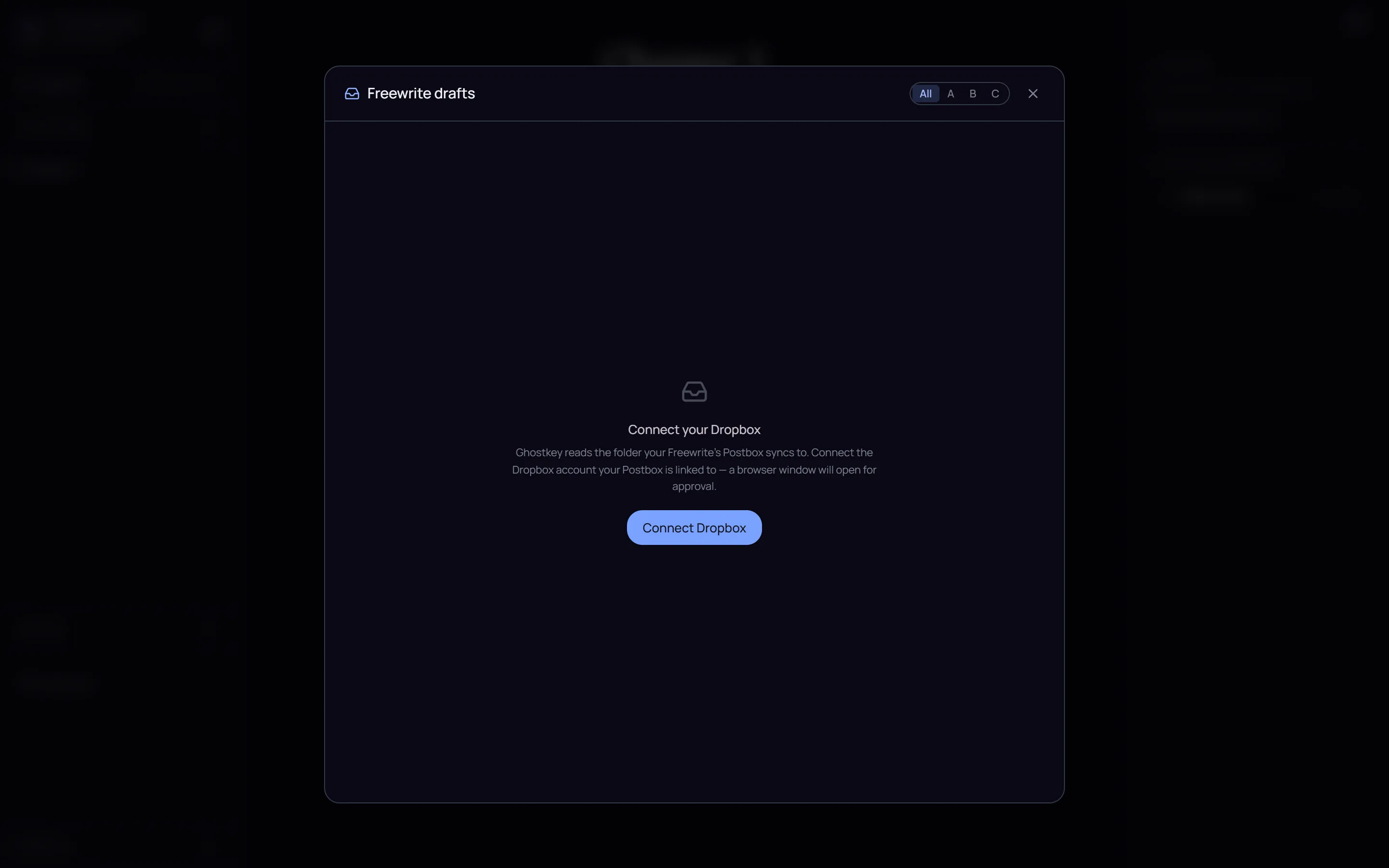
After that, opening the inbox syncs and shows your pending drafts. Click one to read it, then Insert into… to drop it into the open chapter at your cursor. Inserted drafts leave the pile; new writing on the device brings new ones in.
The A / B / C buttons at the top match the Freewrite’s own three folders. Picking one ties this book to that folder, so a book you draft in folder B stops showing you folder A’s sessions. All unties it again.
The full setup, step by step, is in Connecting your Astrohaus Freewrite.
Write with the chat
The chat in PhantomMemory can put words in a chapter too, when you ask it to. Start a conversation, choose Work on the manuscript, and name the chapter you want to work on.
It opens the chapter beside the conversation. Say let’s work on chapter 2 and the chapter slides open next to the chat. It’s the real chapter, not a copy: you can type in it, and it saves as you go. See The view beside the chat.
It drafts a scene when you ask for one. Draft the first scene of chapter 2 from its notes. The scene is written from the chapter’s notes and the book around it, and you watch it land on the page beside you. Then the chat reads it back, fixes anything that contradicts what you’ve already written, and lists what it made up that wasn’t in your notes, so you can keep it or cut it. Ask for a whole chapter from its notes and it asks which scenes you want first.
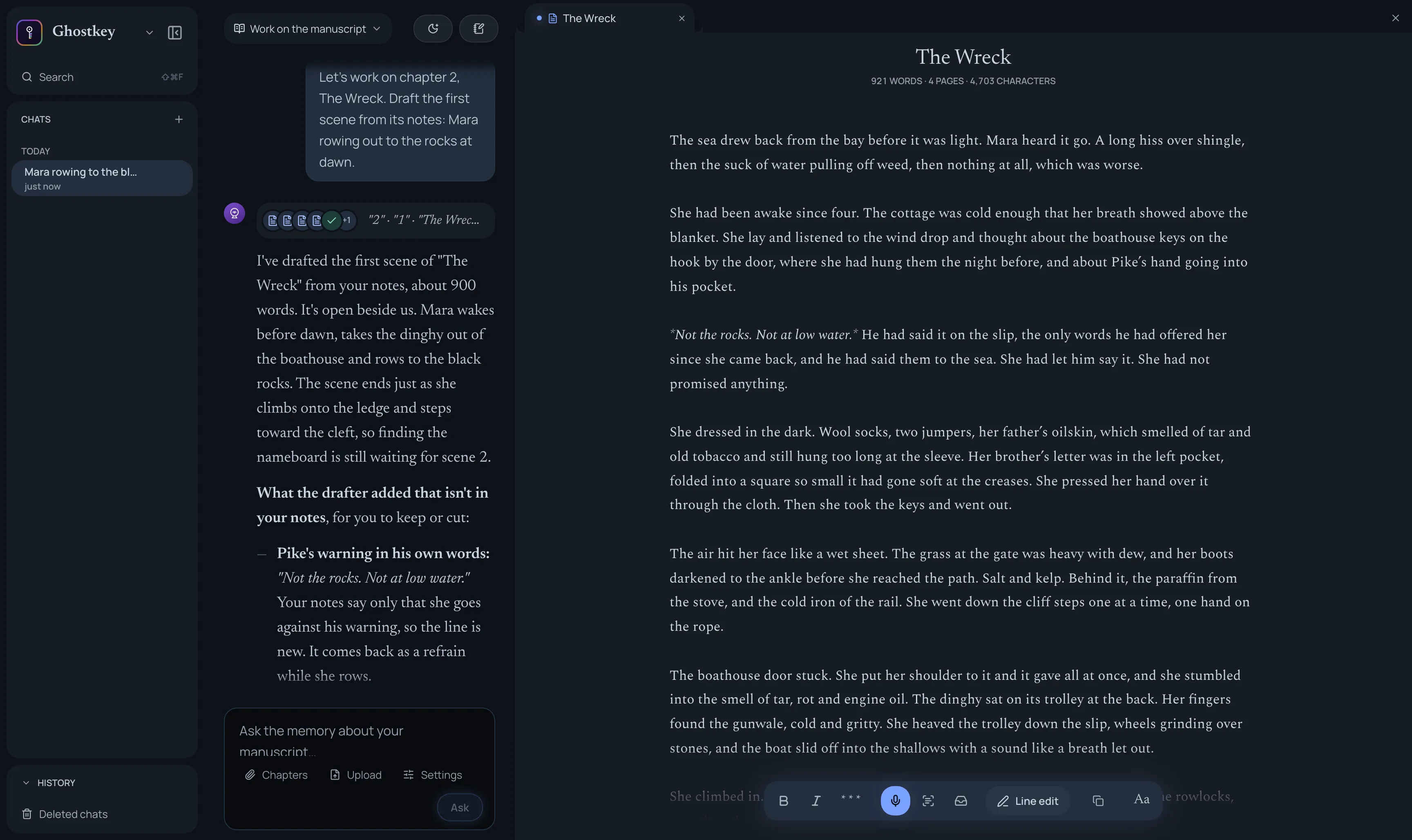
The chat only writes in a conversation set to Write in the manuscript, under Settings in the message box. That’s the default; Read only keeps it to advice. A drafted scene is a starting point, the same as a dictated one: it’s yours to rewrite. And if you’d rather not keep it, see Going back to an earlier version.
Drafting while you revise
When a revision touches several places at once (a new scene here, a reveal moved there), ask for it in one go: I want a new scene at the end of chapter 1 where Pike comes to the cottage. Put it together as a list of changes.
The chat answers with a change set: a list on the Chapters page beside the conversation, one change per row, each saying what it does and which chapters it touches. Nothing in your manuscript moves yet.
A change that needs new prose says so, and lets you choose. Draft it has the chat write the scene when it makes the changes. Leave blank leaves the scene for you to write, in that chapter’s notes. Skip drops a change altogether, and anything else you’d change about the list, just say in the chat.
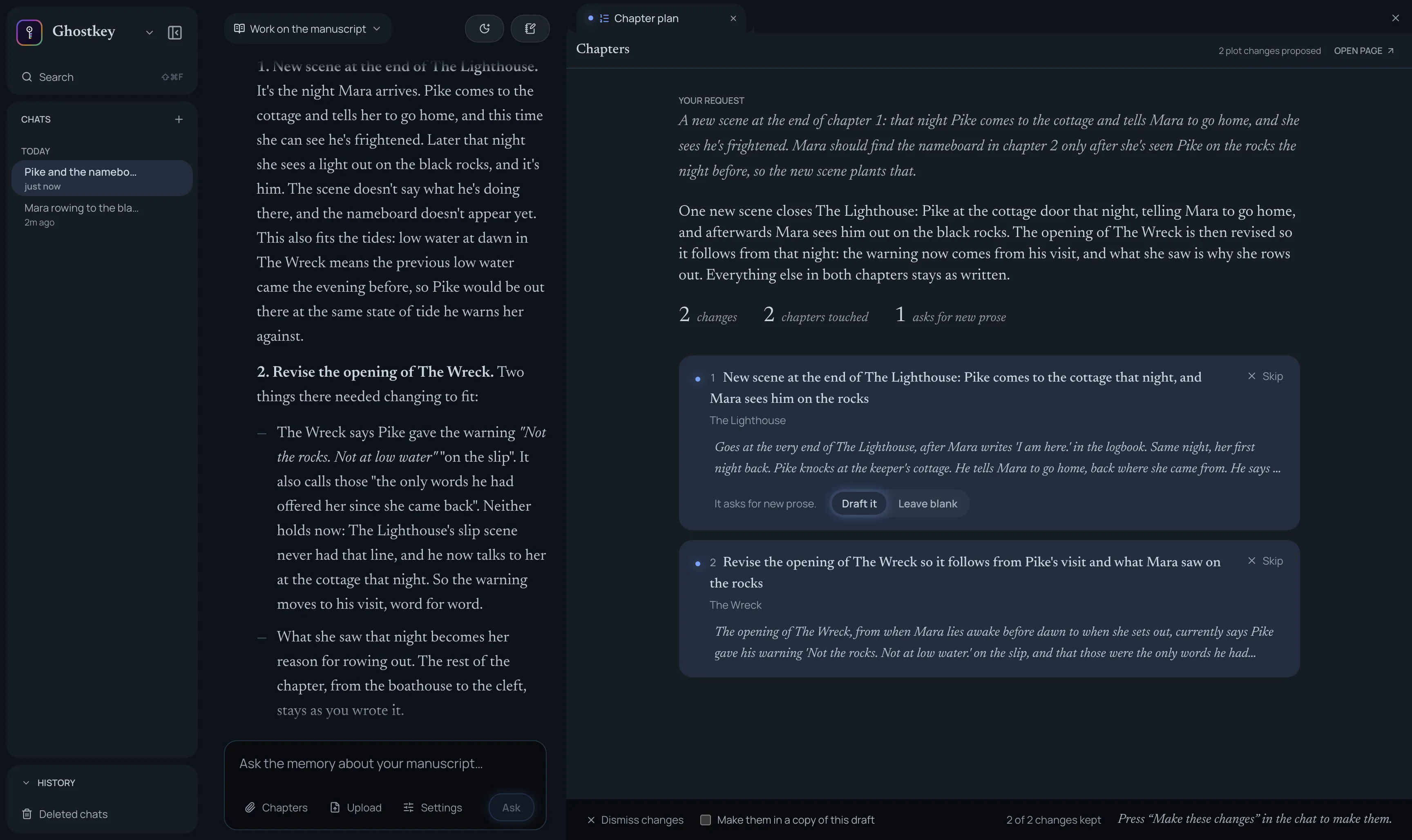
When the list is right, press Make these changes under the chat’s answer. Ghostkey tags a version of your book first, then the chat works down the list in order: it drafts the new scenes, revises the passages they affect, and mends the seams. To leave your current draft exactly as it is, tick Make them in a copy of this draft before you press.
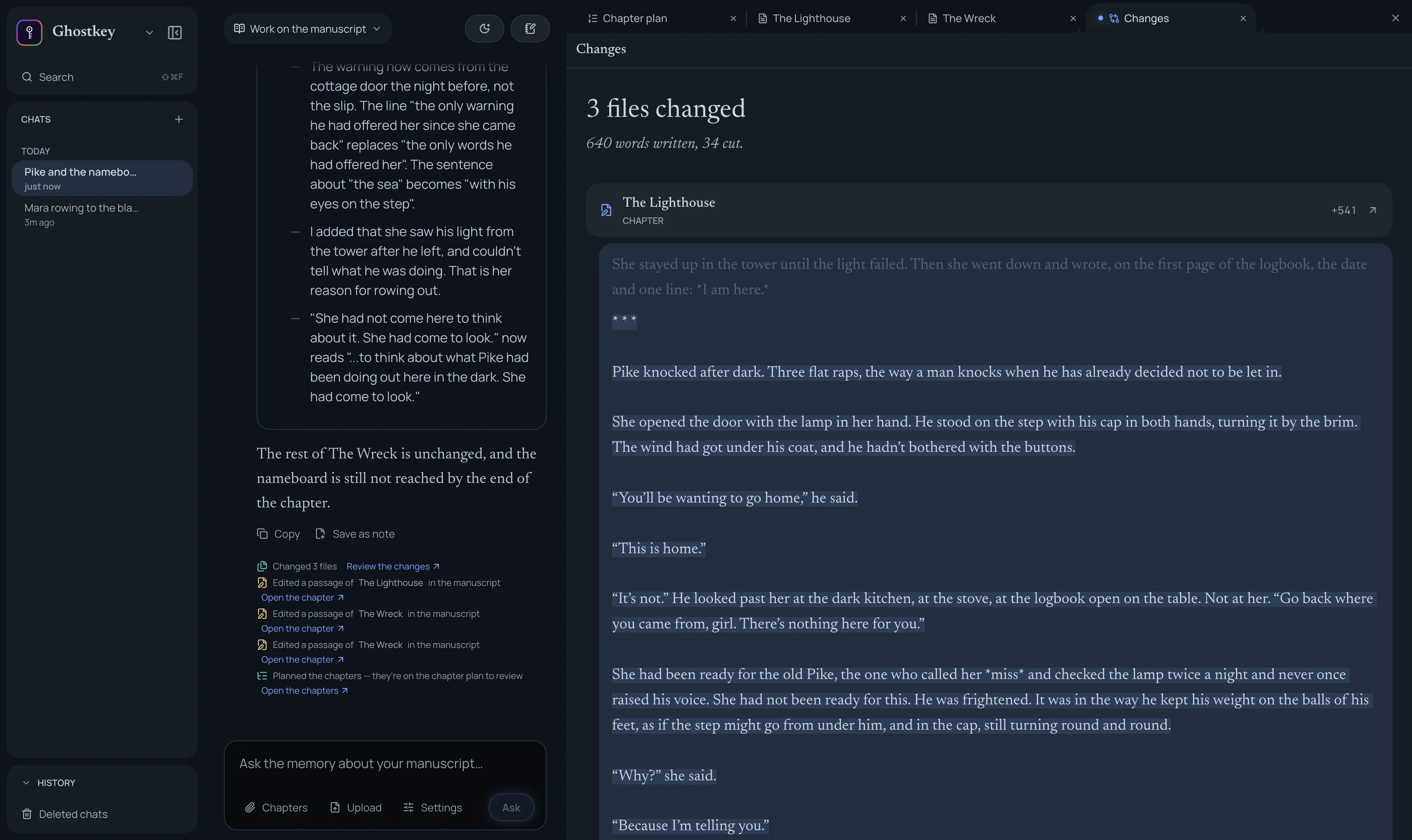
When it’s done, Review the changes shows every chapter it touched, with what it wrote and what it cut.
Teach Ghostkey your names
This is the step that makes the other three work properly, and it is the one people skip.
Dictation has never heard of your protagonist. Neither has the handwriting reader. Left alone they will guess — phonetically, and differently every time, so one character ends up spelled three ways across a chapter.
Fix it once: open Veil and add your characters, places and invented terms.
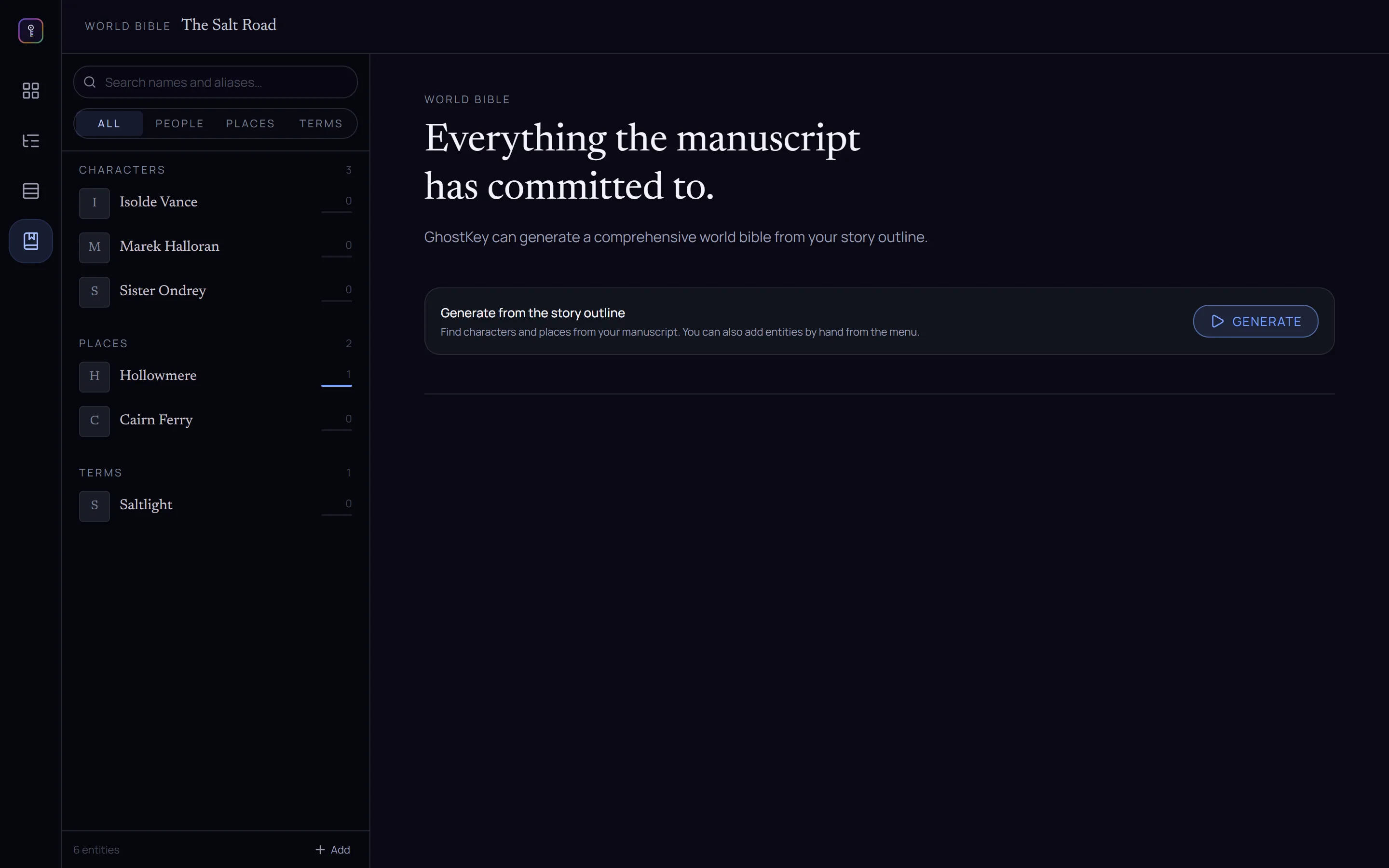
Add at the bottom of the list takes a type and a name, and that is the whole form.
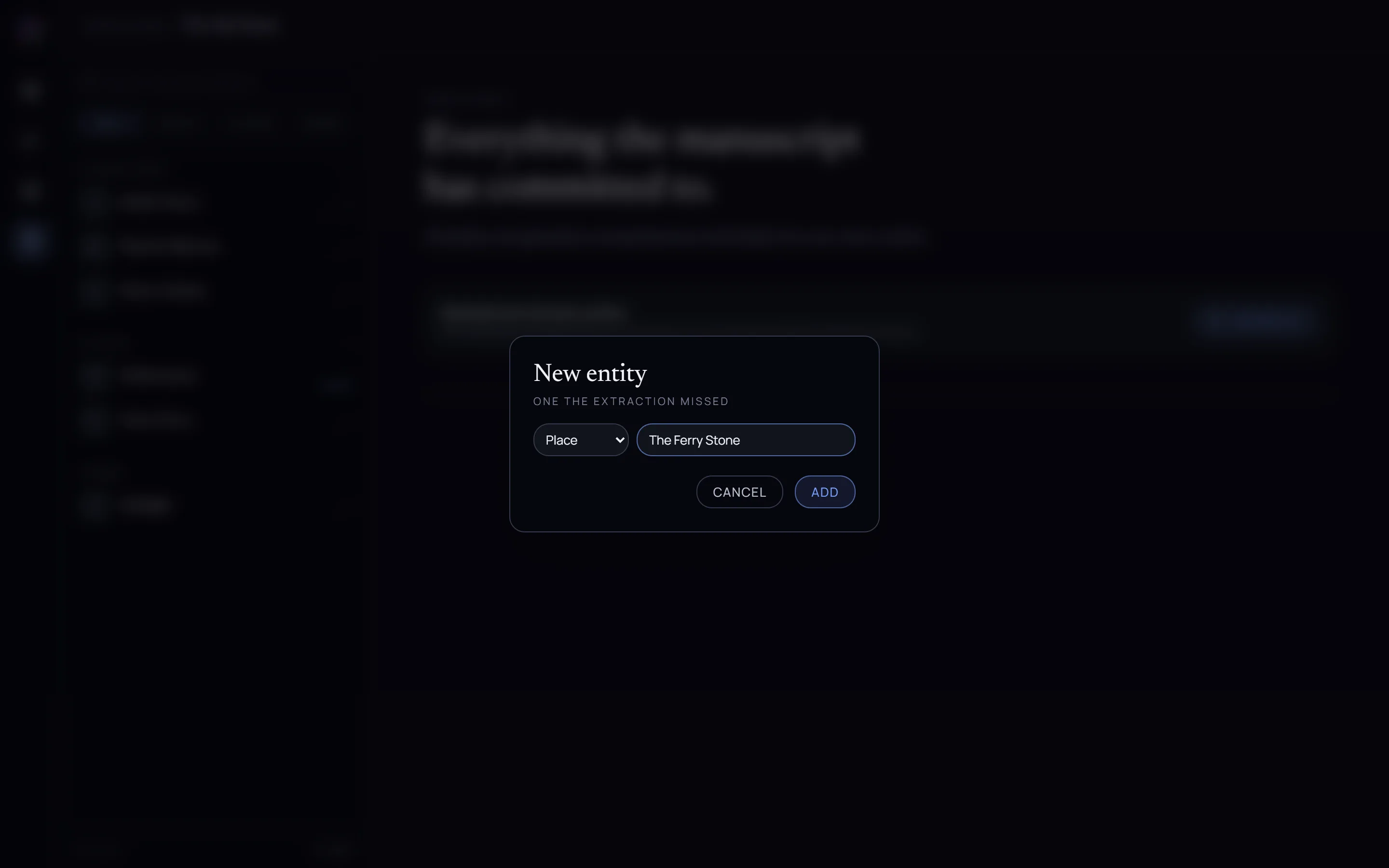
From then on, those spellings are handed to the transcription pass, to the handwriting reader, and to Apparition’s Proofread — so a name you said out loud, a name you scrawled in a notebook and a name you typed all come out the same. You can add them before you have written a word; you don’t need a finished manuscript for the list to be useful.
Many ways in, one manuscript. Whichever you use, the chapter you end up with is an ordinary Ghostkey chapter — versioned, counted in Poltergeist, and ready for the rest of the house.