Drafts
A draft is your novel as it stands at a given moment: its chapters, their order, and every word in them. A book can hold as many drafts as you like. You write in one at a time, and the others stay exactly as you left them.
What drafts are for
Big changes. When you want to restructure, cut a subplot, or change who tells the story, and you’re not sure it will turn out better than what you have, start a new draft. Your current chapters are kept as they are, so you can read them later, borrow from them, or go back to them if the new version doesn’t work out.
Feedback. When you send the book to critique partners or beta readers, the draft you sent is a record of what they read. Weeks later, when a note says “the scene at the lighthouse dragged”, you can open that draft and see exactly what was on the page, even if you’ve rewritten it since.
Making a new draft
There are two ways.
By hand
-
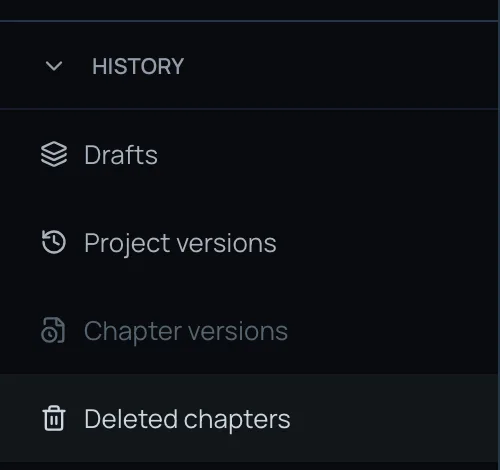
In Apparition, open History at the bottom of the left rail and click Drafts.
-
Click New draft.
-
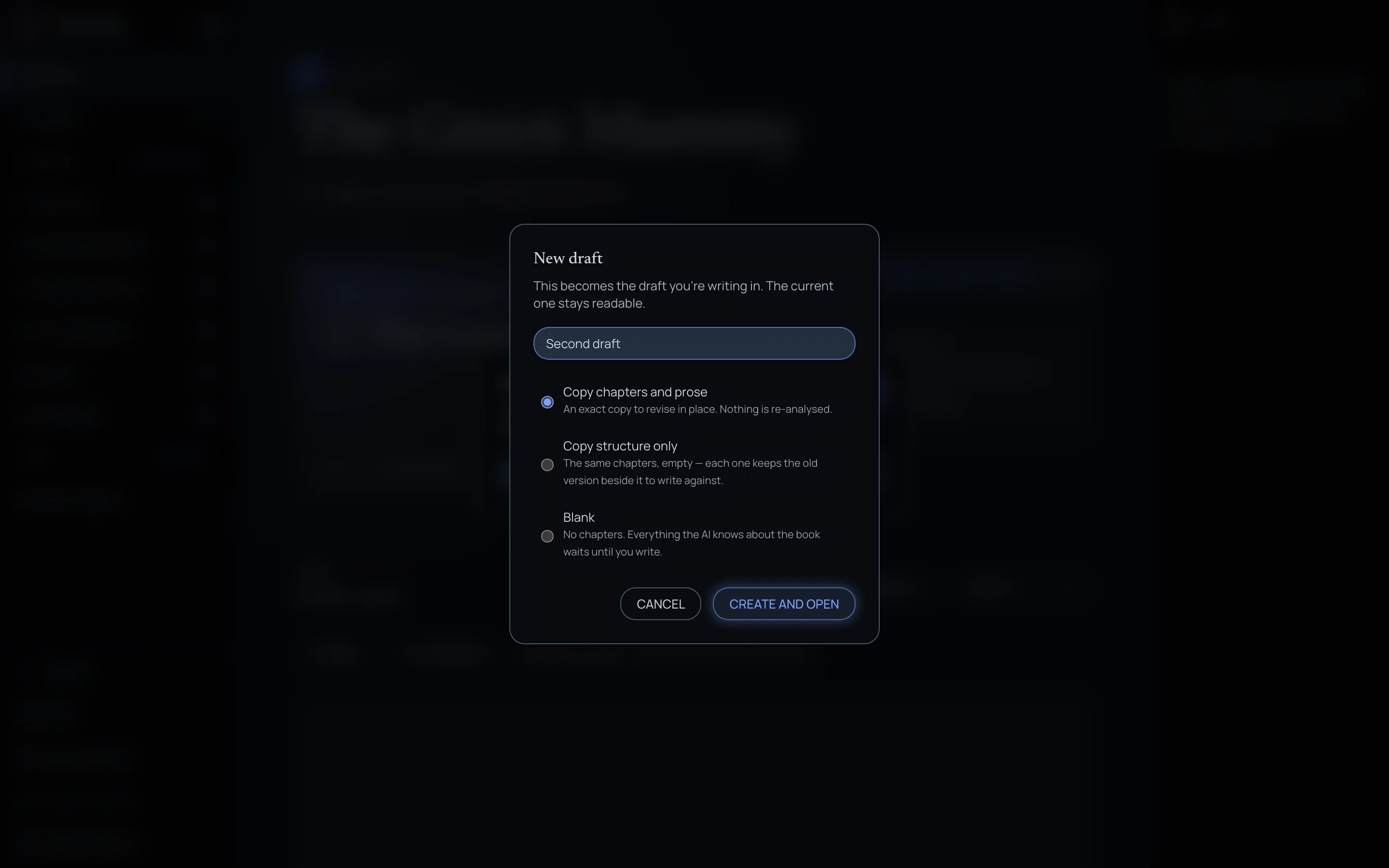
Give it a name, and choose what it starts from:
- Copy chapters and prose: an exact copy, ready to revise in place.
- Copy structure only: the same chapters, empty, each with its old version beside it to write against.
- Blank: no chapters at all.
If the book already has more than one draft, you can also choose which one to copy from.
-
Click Create and open.
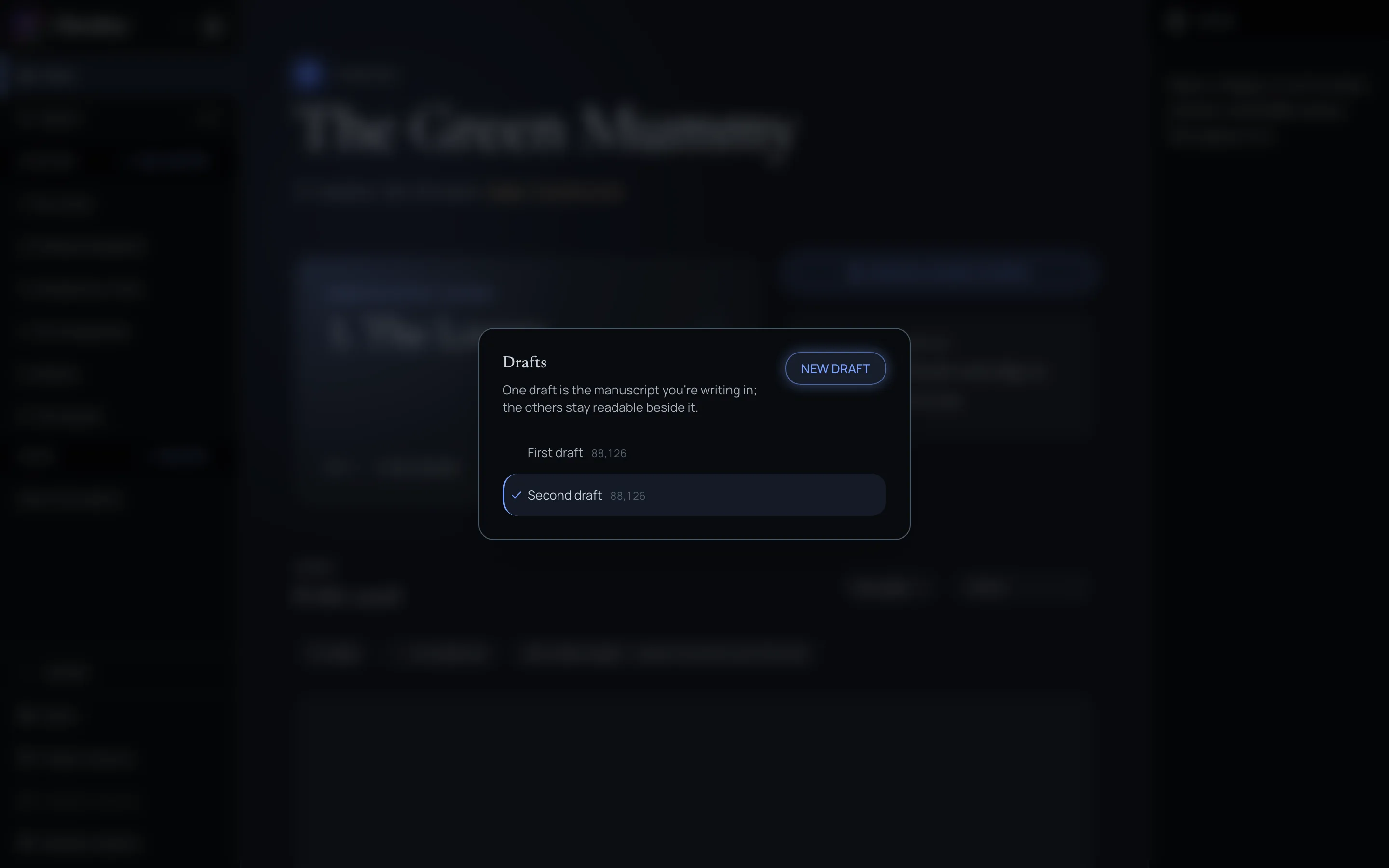
The new draft becomes the one you’re writing in. The previous one is still in the list, untouched.
From interactive plotting
When you plan chapters with the chat and then create them, the chapters go into a new draft automatically, and Ghostkey switches you to it. Your previous draft stays as it was. See The chapter plan.
Restoring a project version also brings the book back as a new draft, so you never lose the one you were in.
Start from scratch, or keep what you have?
It depends on how you work, and on how rough the last draft was.
Some writers prefer to start from scratch, especially when their first drafts are very rough: a blank chapter with the old one beside it frees them to write the scene they now know it should be. Others prefer to keep as much as they can and reshape it.
A good test: compare how long it takes you to rewrite a chapter with how long it takes you to edit one into shape. If rewriting is faster, start from scratch with Copy structure only. If editing is faster, use Copy chapters and prose. And you don’t have to choose for the whole book: copy everything, then clear the chapters you want to rewrite.
Switching between drafts
Open History → Drafts and click the draft you want. The one you’re writing in is checked, and the whole room switches to the one you pick.
You can go back to an earlier draft at any point. Switching never merges or deletes anything, and the draft you leave stays alive, ready for when you come back.
From the same list you can rename a draft, export it as a Word document, or delete it. You can’t delete the draft you’re in, and deleting a draft takes its chapters with it for good, so if you might want it one day, keep it and switch away instead.
Writing with the previous draft beside you
The most useful thing about an old draft is having it open while you write the new one.
- Open a chapter in your new draft.
- Click the split view button, beside the chapter’s word count.
- The first suggestion is the draft before this one: the same chapter, as it was. Click it. You can also search for it, or for any chapter of any earlier draft, by name.
The previous version opens next to the chapter you’re writing, read-only, so you can’t change it by accident.
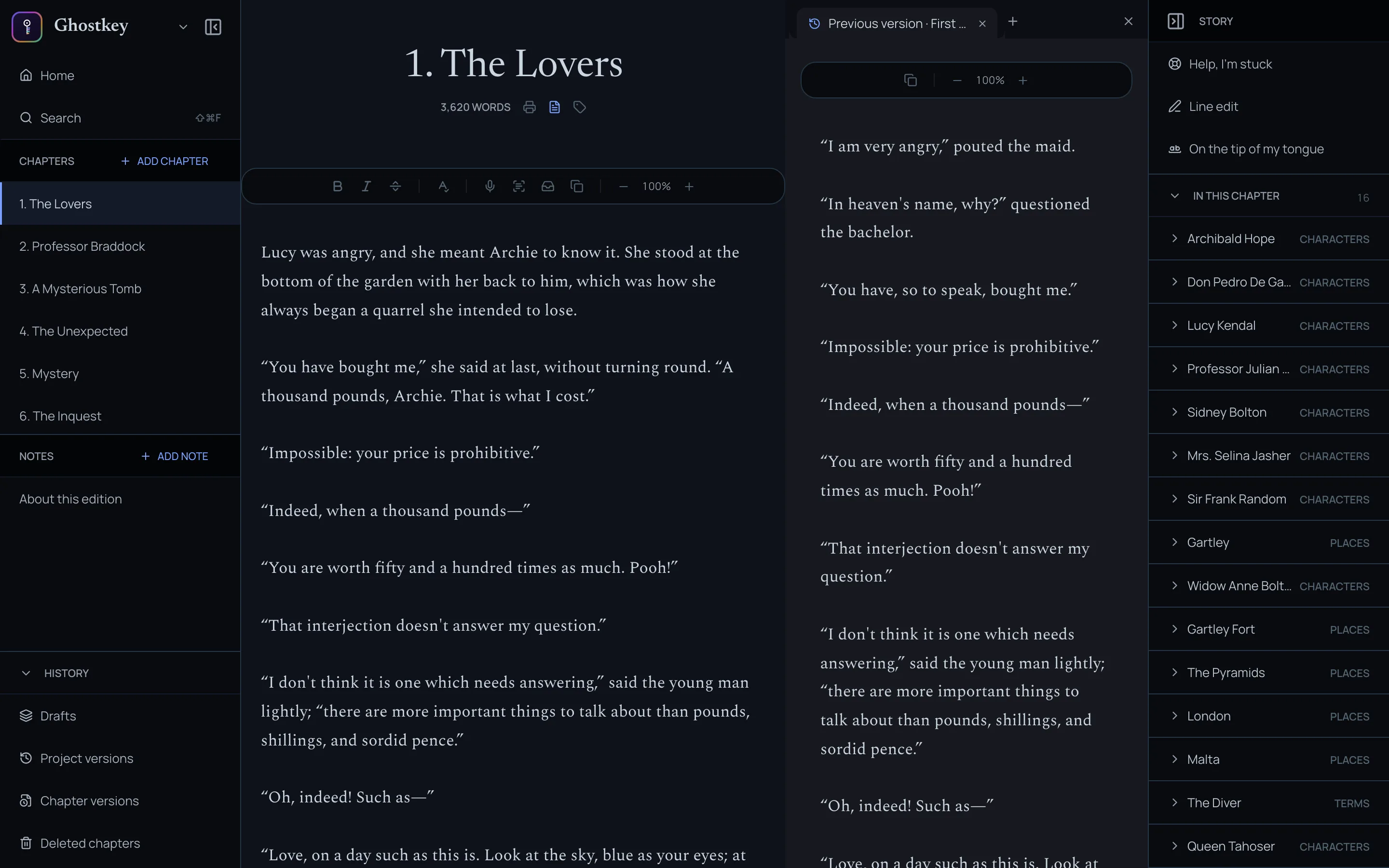
It follows you: open the next chapter, and the split view shows that chapter’s previous version.
The split view can hold much more than old drafts: your outline, a character sheet, a moodboard. See The split view.