Connecting Claude or ChatGPT
If you talk your books through with Claude or ChatGPT, the good parts tend to stay in that conversation. A plot fix, a character’s backstory, a new outline: you either copy them across by hand or lose them in a long chat.
Ghostkey can connect to your own Claude or ChatGPT, so it can read your books while you talk and save what you decide straight into them. You set it up once in each app.
Connecting an app is part of the Basic and Standard plans.
What an MCP is
MCP (Model Context Protocol) is a shared way for an AI assistant to use other apps. An app that supports it publishes a connector: an address the assistant can call to look things up and save things, with your permission.
Claude calls these connectors. ChatGPT calls them custom MCP servers, or plugins. They’re the same thing.
Your assistant doesn’t get a copy of your books. It asks Ghostkey for what it needs while you talk, a chapter or a character card, and Ghostkey only answers for your account. You can switch it off at any time.
What the Ghostkey connector can do
Once it’s connected, your assistant can read:
- your list of books and their drafts, including shelved ones
- any chapter, word for word
- a search through the manuscript, for a name or a phrase
- Ghostkey’s chapter-by-chapter reading of the book: who’s in each chapter, where and when it happens, what happens
- your own outline, your plot boards, and your notes
- the world bible: characters, places and terms from Veil
And it can save:
- notes: a decision, research, a scene idea, or a whole conversation if you want to keep it
- world-bible cards: a new character, place or term, or an edit to one you already have
- your outline, on the Outline page in Mara
- plot boards: start a new one, or fill in its beats
It only saves what you ask it to, and it tells you what it saved and where. Everything it writes shows up in Ghostkey like anything else: notes in your notes, cards in Veil, the outline and boards in Mara.
So you can say “read chapter 12 and tell me if Jason’s motive holds up”, and once you’ve worked it out, “save that as a note in the book” or “add Adrien to the world bible with what we just decided”.
The address
Both apps ask for the same address:
https://api.ghost-key.app/api/mcpYou’ll also find it in Ghostkey under Account → Apps.
Adding it to Claude
This works on claude.ai and in the Claude desktop app.
-
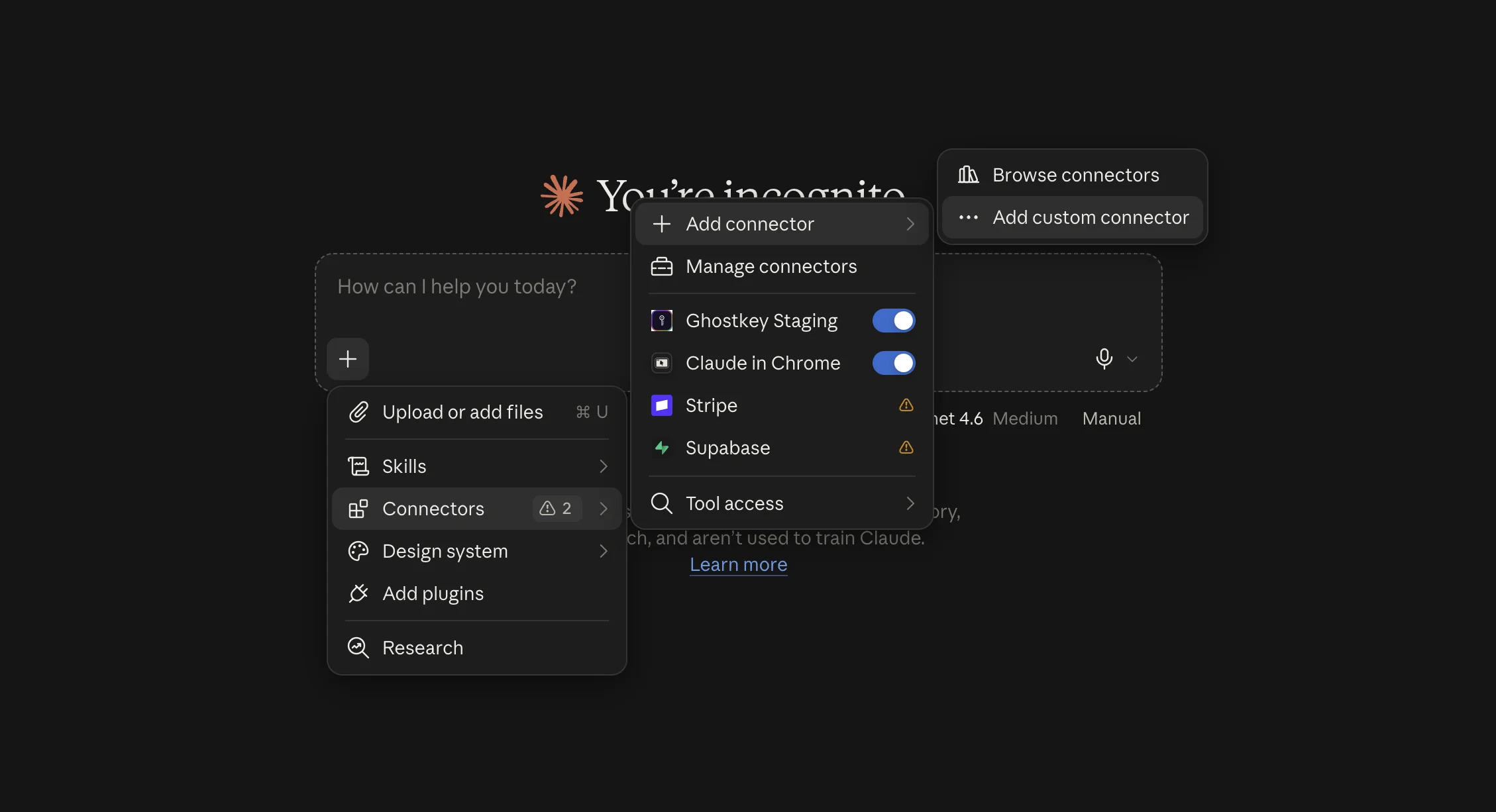
Start a new chat and click the + under the message box. Choose Connectors, then Add connector, then Add custom connector.
-
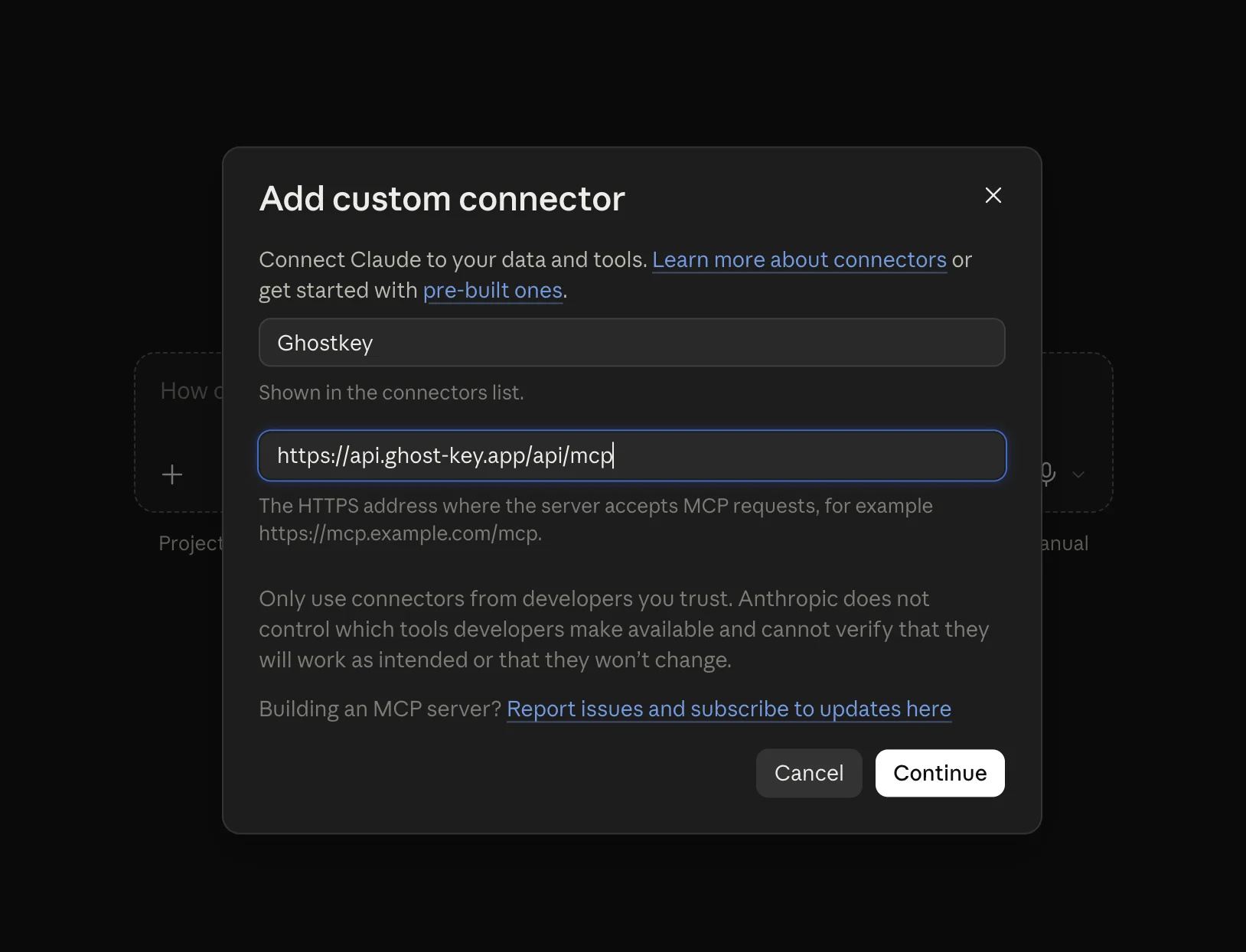
Name it Ghostkey, paste the address above into the second field, and click Continue.
-
Claude opens a Ghostkey page. Sign in if it asks you to, then click Allow Claude.
-
Back in Claude, click + → Connectors again and check that the Ghostkey switch is on. You can turn it off in any chat where you don’t want Claude looking at your books.
To check it worked, ask Claude “what books do I have in Ghostkey?”
Adding it to ChatGPT
-
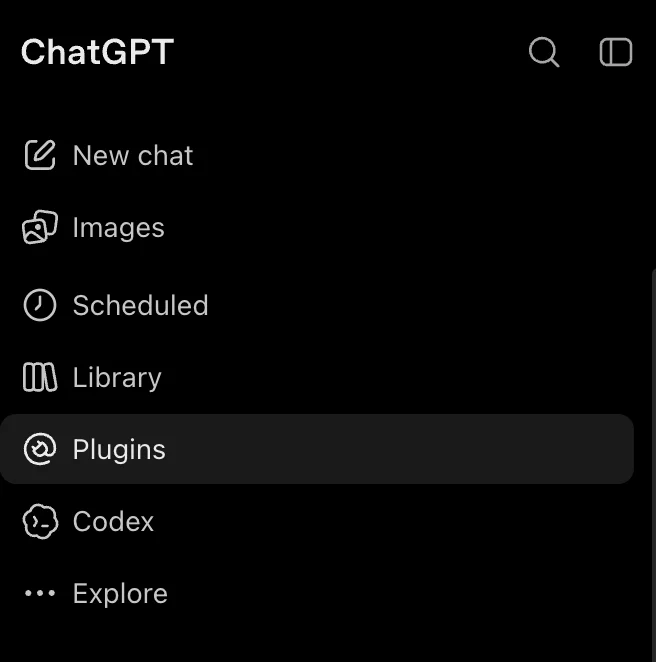
In ChatGPT’s sidebar, open Plugins.
-
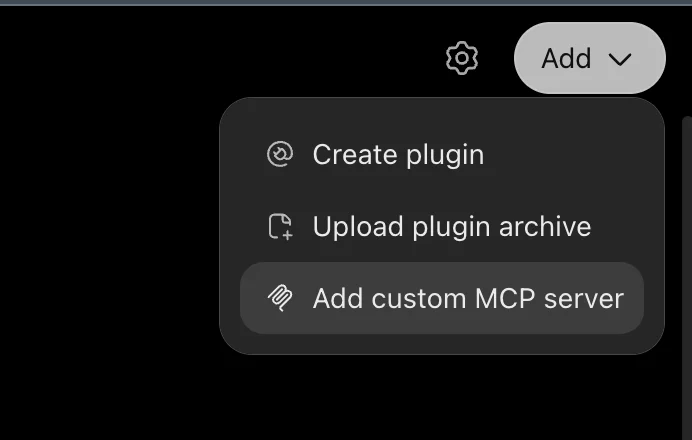
Click Add at the top right, then Add custom MCP server.
-
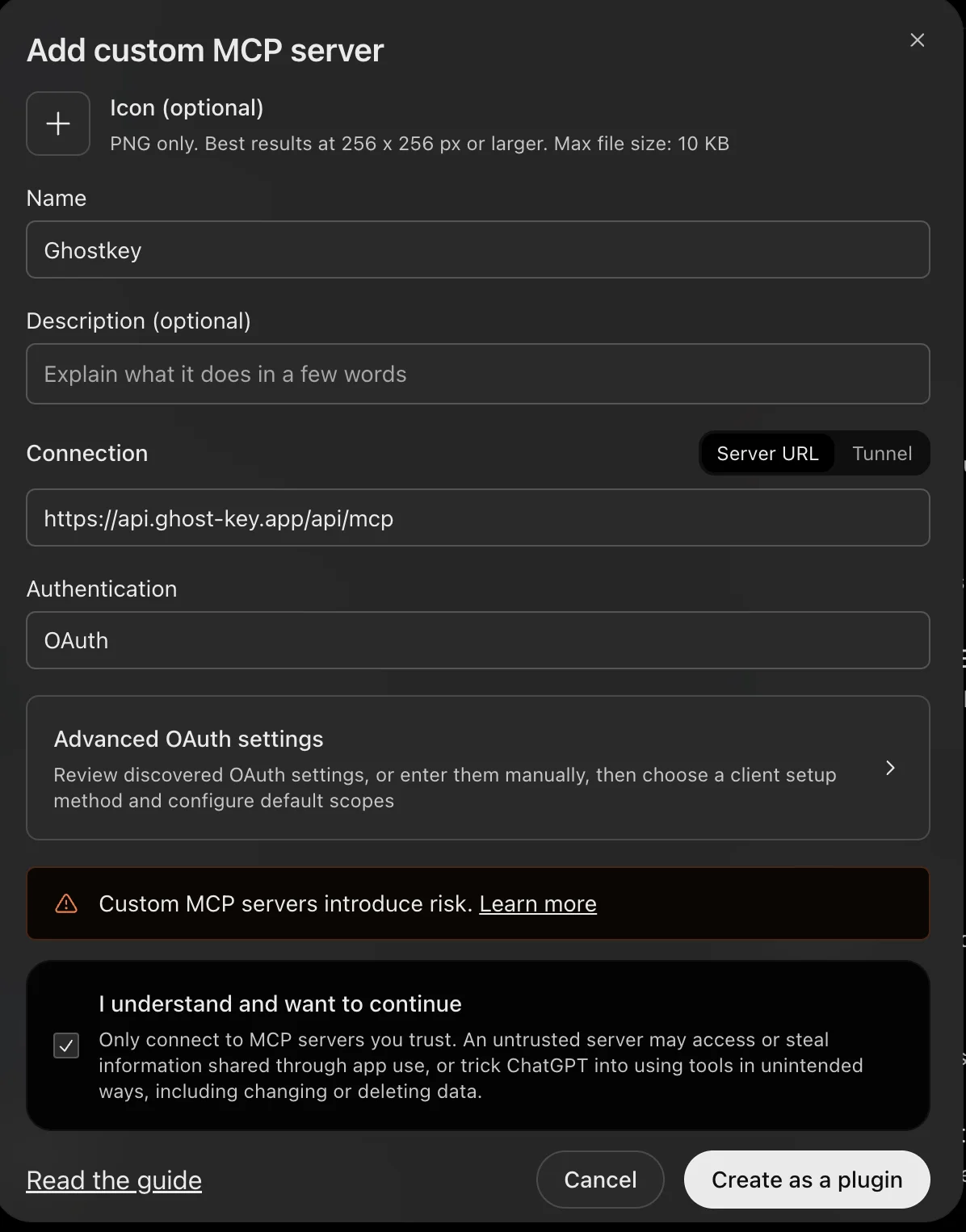
Fill in the form:
- Name: Ghostkey
- Connection: leave it on Server URL and paste the address above
- Authentication: OAuth
You can leave the icon, the description and the advanced OAuth settings as they are. Tick I understand and want to continue, then click Create as a plugin.
-
ChatGPT opens a Ghostkey page. Sign in if it asks you to, then click Allow ChatGPT.
ChatGPT only offers custom MCP servers on some of its plans. If you don’t see Plugins or Add custom MCP server, your ChatGPT plan may not include it.
To check it worked, ask ChatGPT “what books do I have in Ghostkey?”
If something doesn’t work
- The Ghostkey page says your plan doesn’t include it. Connecting an app needs Basic or Standard. The page links to the plans.
- It can’t find a book. Use the title exactly as it appears in Ghostkey. If two books have the same name, give one of them a different name, or ask your assistant to list your books first and pick from the list.
- It says it can’t find a world bible. Veil hasn’t made one for that book yet. Open the book in Veil to make it, and your assistant can search the manuscript in the meantime.
Disconnecting
In Ghostkey, open Account → Apps. It lists every app you’ve connected, each with a Disconnect button. Disconnecting stops that app at once. Your books, and anything it saved into them, stay as they are.
You can also remove Ghostkey from Claude’s or ChatGPT’s own connector settings, but that only removes it on their side. Disconnect in Ghostkey to cut it off completely.